You can connect Google Search Console to ChatGPT through SearchConsole.ai, a hosted remote MCP server. Once connected, ChatGPT can use your real Search Console evidence to compare performance periods, find declining pages and queries, inspect Google's indexed-version data, and review sitemap status.
The Search Console operations exposed by SearchConsole.ai are read-only. ChatGPT cannot use them to submit a sitemap, remove a property, change indexing, edit your website, or deploy code.
Quick setup: Sign up to SearchConsole.ai for free, connect the Google account that can access your verified properties, and add SearchConsole.ai from the ChatGPT Plugins directory or as a custom MCP plugin using
https://searchconsole.ai/mcp.
This guide covers both connection methods, ChatGPT plan limits, workspace settings, and OAuth. It includes test recipes, troubleshooting steps, and data protection.
Choose the correct ChatGPT connection route
ChatGPT can find plugins in its directory. It can also connect to a custom remote MCP server. Use the first route that is available to you:
| Route | Use it when | Setup effort |
|---|---|---|
| ChatGPT Plugins directory | SearchConsole.ai appears in your directory with a Connect button | Fastest |
| Custom MCP plugin in Developer Mode | The directory listing is unavailable, but your plan and workspace permit custom plugins | About 5–10 minutes |
| Workspace deployment | An organization wants an admin to test and publish the connection for approved members | Requires admin review |
OpenAI's Apps in ChatGPT documentation says directory visibility and connection availability can depend on the plan, workspace, role, region, supported surface, and app configuration. A missing or disabled Connect button does not necessarily indicate a SearchConsole.ai problem.
Before you connect
You need:
- a Google account with access to at least one verified Search Console property;
- a ChatGPT account with access to plugins or custom plugins;
- ChatGPT on the web for custom MCP setup;
- permission from a workspace administrator if plugin creation or installation is managed;
- permission to share the selected site's Search Console data with ChatGPT under your organization's policies.
If the website has not been added to Search Console, first create and verify a property. OAuth can authorize data that the Google account already has permission to see; it cannot grant access to a property by itself.
Check whether your plan and role support the connection
OpenAI currently documents custom MCP support as follows:
- ChatGPT Pro users can use Developer Mode for custom plugins with read/fetch access, subject to current availability.
- ChatGPT Business, Enterprise, and Edu support Developer Mode and broader MCP plugin deployment on ChatGPT web.
- Business workspaces limit Developer Mode and publishing to admins or owners.
- Enterprise and Edu admins can grant Developer Mode access to selected people through role-based access control, while only admins or owners publish plugins.
- Custom MCP plugins in Developer Mode are currently web-only.
These controls are still evolving. Check OpenAI's current Developer Mode documentation if a menu in this guide is absent or has been renamed.
Route 1: connect from the ChatGPT directory
Use this route when SearchConsole.ai is visible to your account:
- Open ChatGPT Plugins.
- Search for SearchConsole.ai.
- Open the listing and review its description, permissions, privacy policy, and terms.
- Select Connect.
- Complete the SearchConsole.ai and Google authorization flow in the browser.
- Return to ChatGPT and reload the page. Confirm that SearchConsole.ai is in the list of connected plugins.
If Connect is unavailable and ChatGPT says the plugin is disabled by an administrator, a workspace owner must enable it. If no listing is visible, use the custom MCP route below if your account is eligible.
Route 2: add SearchConsole.ai as a custom MCP plugin
ChatGPT does not connect directly to the local Python stdio example from the previous guide. It needs a reachable remote MCP endpoint. SearchConsole.ai provides that endpoint over HTTPS:
https://searchconsole.ai/mcp
Step 1: enable Developer Mode
Open Settings → Security and login. Turn on Developer mode.
If you cannot see this control, ask your workspace administrator for access. The available controls can depend on your account and workspace policy.
Step 2: create the custom plugin
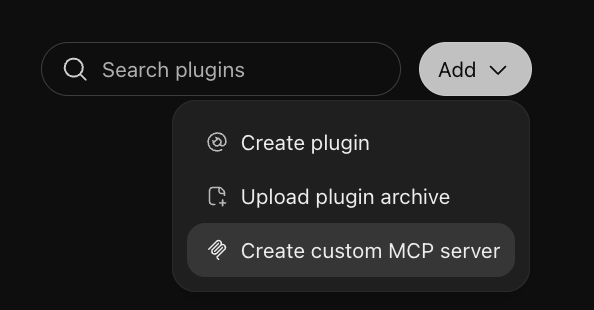
- Open Personal plugins in ChatGPT.
- Click Add in the top right corner.
- Select Create custom MCP server from the menu.
Enter these values in the Create custom MCP server form:
| Field | Value |
|---|---|
| Name | SearchConsole.ai |
| Description | Read-only Google Search Console analysis for ChatGPT |
| Connection | Server URL |
| Server URL | https://searchconsole.ai/mcp |
| Authentication | OAuth |
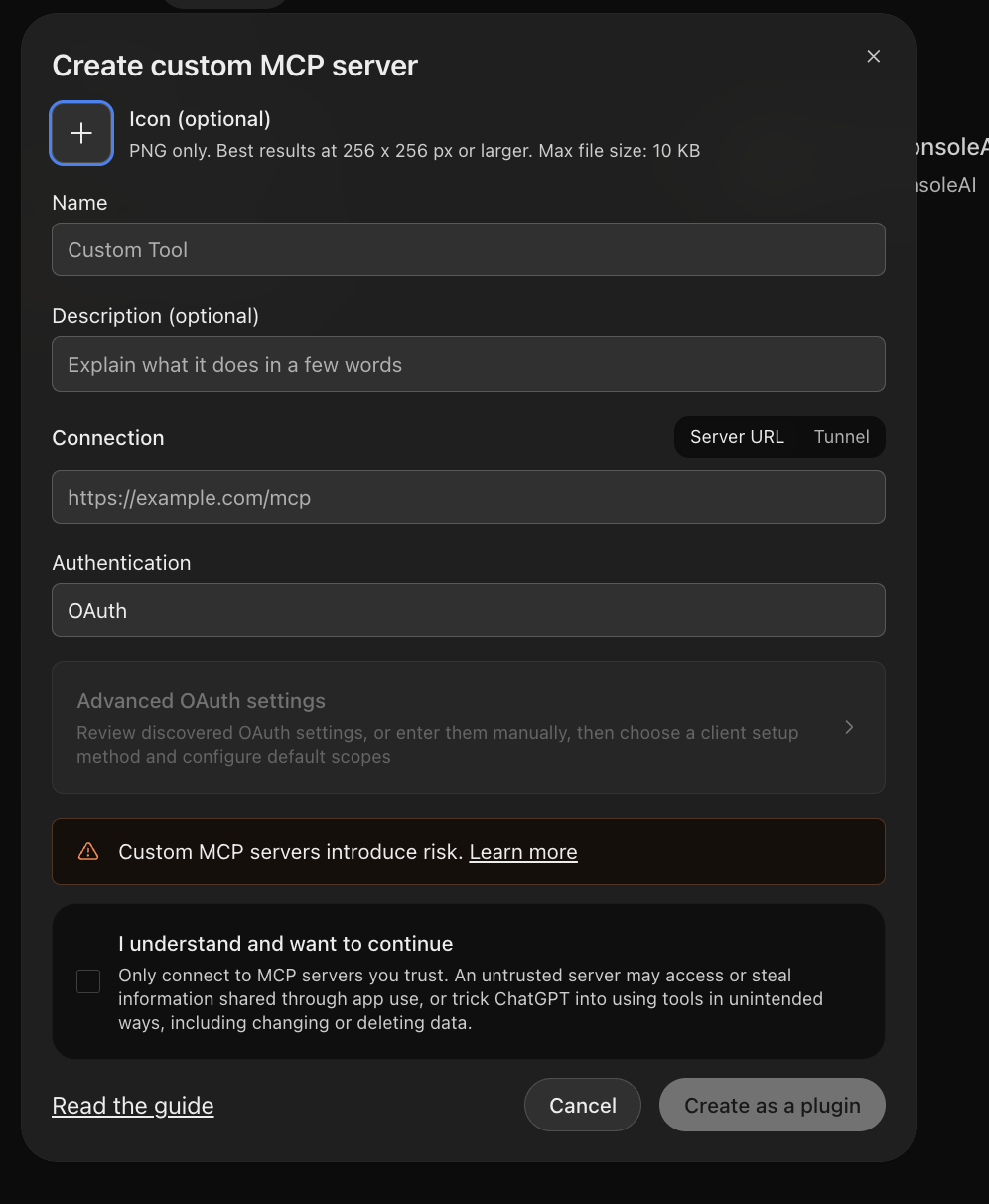
Do not enter a Google API key, Google client secret, Search Console export, or static bearer token. SearchConsole.ai advertises the OAuth metadata ChatGPT needs to start the browser authorization flow.
Step 3: create the plugin and inspect the tools
Select OAuth authentication. Read the warning. Select I understand and want to continue. Then click Create as a plugin.
Connect SearchConsole.ai and complete authorization in your browser. The tool list can be empty until authorization is complete and you reload the ChatGPT page.
During authorization:
- SearchConsole.ai identifies the account that will own the MCP connection.
- Google asks you to select or sign in to an account.
- SearchConsole.ai requests the read-only Search Console scope.
- After consent, the browser returns to ChatGPT.
- ChatGPT completes the plugin connection.
Use the Google account that can open the required property in Search Console. If you manage several Google accounts, check the email carefully before approving access.
Google should show this Search Console scope:
https://www.googleapis.com/auth/webmasters.readonly
The broader webmasters scope is not required. SearchConsole.ai handles OAuth token storage and refresh; you do not copy Google credentials into ChatGPT.
Step 4: review the discovered capabilities
After authorization, reload the ChatGPT page. Confirm that the plugin lists 16 tools. Use the browser's reload button, not the plugin's Refresh control.
Review the tools that ChatGPT found. The Search Console capabilities should cover:
- listing properties and their permission levels;
- querying clicks, impressions, CTR, and average position;
- grouping and filtering performance by supported dimensions;
- comparing explicit date periods;
- finding queries associated with a page;
- inspecting Google's indexed-version evidence for URLs;
- reviewing submitted sitemaps and their processing state.
SearchConsole.ai does not expose Search Console mutations to ChatGPT. A separate feedback capability can send a confirmed support message to SearchConsole.ai, but it does not alter Search Console or the website and should never be called without your confirmation.
After the OAuth flow is complete, SearchConsole.ai should appear in the Installed section of ChatGPT Plugins. A workspace plugin can remain a draft until an administrator publishes it.
Verify the connection in a new chat
Reload any ChatGPT tab that was open before you connected the plugin. Start a new chat. Type @ and select SearchConsole.ai, or select it from the tools or plugins menu. Then ask for the property list:
Use SearchConsole.ai to list every Google Search Console property I can access. Show the exact property identifier and permission level. Do not run any other analysis yet.
This is an important first test. A Domain property uses an identifier such as sc-domain:example.com, while a URL-prefix property uses a complete prefix such as https://www.example.com/. ChatGPT should use the exact identifier returned by Search Console instead of guessing one from the brand name.
Confirm that:
- ChatGPT says it used SearchConsole.ai;
- the expected properties are present;
- the returned permission levels make sense;
- no property belonging to a different Google account appears unexpectedly.
If the tool returns properties successfully, both authentication layers are working: ChatGPT is authorized to the MCP server, and SearchConsole.ai is authorized to Google for your account.
Run the first Search Console analysis
Select one returned property and request a bounded, stable comparison:
Using SearchConsole.ai and the exact property identifier I selected, compare clicks, impressions, CTR, and average position for the last complete 28 days with the preceding 28 days. Exclude incomplete recent dates. Show the largest page and query changes, then separate Google-reported facts from your hypotheses.
For a focused content opportunity report:
Find pages with meaningful impressions and average positions between 4 and 15 during the last complete 28 days. For each page, inspect the leading queries and explain whether the opportunity appears to be stronger relevance, better CTR, or both. Do not invent page content you have not seen.
For indexing evidence:
Inspect these URLs using SearchConsole.ai. Report Google's indexed-version status, last crawl, robots state, user-declared canonical, and Google-selected canonical. Clearly say when Google did not return a field. Do not describe this as a live URL test.
Search Console does not guarantee every query row, can suppress anonymized queries for privacy, and can report preliminary recent data. A good ChatGPT answer should preserve those qualifications instead of treating the results as a complete analytics export.
Use SearchConsole.ai in Deep Research and other ChatGPT modes
OpenAI currently says Deep Research can use custom plugins for read/fetch operations. Because SearchConsole.ai's Search Console operations are read-only, it can be useful for a research task that combines first-party performance evidence with public sources, subject to your plan and workspace controls.
OpenAI also currently says Agent Mode does not use custom plugins. If ChatGPT does not call SearchConsole.ai in Agent Mode, repeat the task in an ordinary chat or a supported research surface rather than repeatedly reconnecting OAuth.
Custom Developer Mode plugins are documented as web-only. A directory-published plugin may have its own supported surfaces, so check its listing instead of assuming that custom-plugin behavior applies to mobile.
Roll the plugin out to a ChatGPT workspace
For a team connection, an administrator should test the draft before publishing it:
- Create and authorize the plugin in Developer Mode.
- Test property discovery, a small analytics request, an indexing request, and an expected error.
- Confirm that all Search Console operations are read-only.
- Open the plugin drafts in the workspace settings.
- Review access and action controls.
- Publish the plugin to the intended members or groups.
Enterprise and Edu workspaces can use role-based access and action controls. Business admins should be especially careful before publishing: OpenAI currently documents that updating a published Business custom plugin can require recreating and republishing it.
Published plugins use an approved snapshot of the MCP tool metadata. A live server change does not replace this snapshot. To update it, scan the server, submit a new plugin version, and publish the approved version.
Each workspace member still authenticates to their own Google account unless the administrator deploys a supported team-wide authentication arrangement. Publishing a plugin does not give one employee access to another employee's Search Console properties.
Understand what data is shared
There are three systems involved:
Your ChatGPT conversation
          |
  relevant MCP tool request
          |
     SearchConsole.ai
          |
 Google Search Console API
When ChatGPT calls a tool, SearchConsole.ai receives the tool name and parameters needed to answer it, such as the property identifier, dates, dimensions, filters, or URL. It processes the Search Console response and returns the result to ChatGPT. It does not automatically receive the entire conversation unless ChatGPT includes conversation content in a tool request.
Review the SearchConsole.ai privacy policy, terms, and account deletion flow before authorizing a sensitive property.
OpenAI's Apps in ChatGPT data guidance says enabled apps can receive relevant conversational context and ordinary request metadata. It also states that app-accessed information is not used to train models by default for ChatGPT Business, Enterprise, and Edu. For personal plans, use may depend on whether Improve the model for everyone is enabled. Review your ChatGPT data controls and organization policy before running queries that contain confidential search terms or unpublished URLs.
Troubleshoot ChatGPT connection problems
SearchConsole.ai is missing from the directory
Directory availability can vary. If your plan supports custom read-only MCP plugins, enable Developer Mode and use https://searchconsole.ai/mcp. Otherwise, ask the workspace administrator to enable or install the plugin for your role.
Developer Mode or Create is missing
Confirm that you are using ChatGPT on the web and that your plan and role are eligible. Business members cannot create custom plugins unless they are admins or owners. Enterprise and Edu users may need explicit Developer Mode access from an administrator.
No tools appear after plugin creation
Complete authorization, then reload the ChatGPT page. Check the tool list again before you disconnect or create another plugin.
Confirm that the endpoint is exactly:
https://searchconsole.ai/mcp
Do not add another path or use a local address. Select Server URL and OAuth authentication.
For a Developer Mode plugin, refresh the metadata or recreate the plugin after the server changes. For a published plugin, the publisher must scan the server and submit a new version. Then the publisher must publish the approved version. A recipe cannot restore a missing tool catalog.
Authorization completes but the plugin is not ready
Return to the original ChatGPT tab and wait for the connection to complete. Then reload the ChatGPT page. If the connection still does not work, disconnect it and create the plugin again. Use the same Google account during the complete flow.
The plugin exists but ChatGPT does not use it
Reload the ChatGPT page first. Start a new chat, type @, and select SearchConsole.ai. You can also select it in the tools or plugins menu. Confirm that the selected model and mode support plugins. Agent Mode does not currently invoke custom plugins.
For a managed workspace, ask an administrator whether the plugin was published to your group and whether its current tools are enabled. If the server capabilities changed after approval, the administrator may need to refresh the plugin's tool snapshot.
The expected Search Console property is missing
Open Search Console directly with the same Google account and verify access. Then ask ChatGPT to list properties again. Do not substitute https://example.com/ when Google returned sc-domain:example.com, or the reverse.
ChatGPT reports expired or revoked access
Open SearchConsole.ai in ChatGPT Plugins, disconnect it, reconnect it, and complete Google consent again. Google authorization can be revoked independently from the ChatGPT plugin connection, so both layers may need to be renewed.
The metrics do not match another report
Check the property, date boundaries, search type, filters, dimensions, data state, and time zone. Search Console privacy filtering and aggregation can cause grouped tables to differ from totals, and Search Console should not be expected to match Google Analytics exactly.
Disconnect or delete the connection
To stop using the integration:
- Open ChatGPT Plugins, open SearchConsole.ai, and disconnect it.
- If required, revoke SearchConsole.ai from your Google Account's connected apps.
- To remove the SearchConsole.ai account and associated credentials, use the account deletion flow.
Disconnecting in ChatGPT removes ChatGPT's connection but does not necessarily revoke Google authorization. Revoking Google authorization prevents future Search Console calls but does not necessarily remove the ChatGPT plugin entry. Use both controls when you want a complete disconnection.
Next step: run an evidence-led audit
Once the property listing and first comparison work, continue with Run an AI SEO audit using Search Console data. That workflow gives ChatGPT explicit comparison windows, evidence standards, prioritization rules, and Search Console limitations.
Connect SearchConsole.ai for free and use your verified Search Console properties in ChatGPT without creating a Google Cloud project or maintaining your own remote MCP server.