Use SearchConsole.ai to audit my SEO and identify my highest-impact opportunities. Read and follow the SearchConsole.ai SEO analysis playbook before analyzing the data. Audit first. Do not change website code or content until I approve the fixes. Save the completed audit as a Markdown report using the repository's documentation convention or docs/seo/search-console-audit-YYYY-MM-DD.md. If you cannot save files, show the report in the chat. After the audit, give me a TL;DR in 3 short bullets using simple English. Then suggest up to 5 fixes in priority order. For each fix, show the affected page or file, the evidence, the change you recommend, the expected benefit, and the effort. Mark any uncertainty. Do not produce a day-by-day or 30-day implementation plan. End by asking: "Would you like me to implement these fixes?" Wait for my reply. If I approve, apply only the approved fixes to the open website project. If you cannot edit the project, give me clear instructions to apply them. After the approved fixes are complete, suggest a follow-up re-audit cron job or client automation and offer to create docs/seo/search-console-re-audit.md as its instructions. This file must reference the exact previous audit report and require the next run to compare against it. Also suggest a weekly Search Console history cron job or client automation, with instructions in docs/seo/search-console-weekly-history.md and dated snapshots in docs/seo/search-console-history/. Ask before deployment, publishing, destructive changes, or external-system mutations. Ask separately before creating a schedule or scheduled-task files.
MCP setup
Connect your AI client
Choose your client below. You do not need to sign in on this website first; adding the server starts secure Google authorization in your browser.
One endpoint for every compatible client
Streamable HTTP MCP endpoint
https://searchconsole.ai/mcp
No API key or copied access token is required. SearchConsole.ai requests read-only Google Search Console access through OAuth.
Codex
Paste this into a Codex task:
Add a user-level remote Streamable HTTP MCP server named searchconsole-ai with URL https://searchconsole.ai/mcp. Authenticate it with OAuth in my browser, then use SearchConsole.ai to list all Google Search Console properties I can access.Approve the connection in your browser. If the tools are not available yet, restart Codex and ask it to list your websites.
Method 2: Install from the Codex app
- Open Settings > MCP servers and select Add server.
- Enter searchconsole-ai, choose Streamable HTTP, and use
https://searchconsole.ai/mcp. - Save the server, restart Codex, then select Authenticate.
Run a complete SEO audit
Start a new chat with the project for a property (website) available in your connected Google Search Console account, then paste this recipe:
ChatGPT
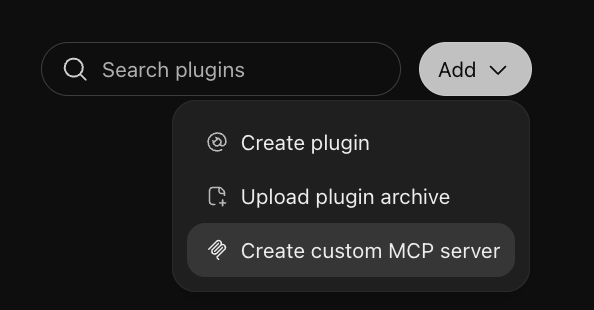
- Open Personal plugins in ChatGPT.
-
Click Add in the top right corner. Select Create custom MCP server from the menu.
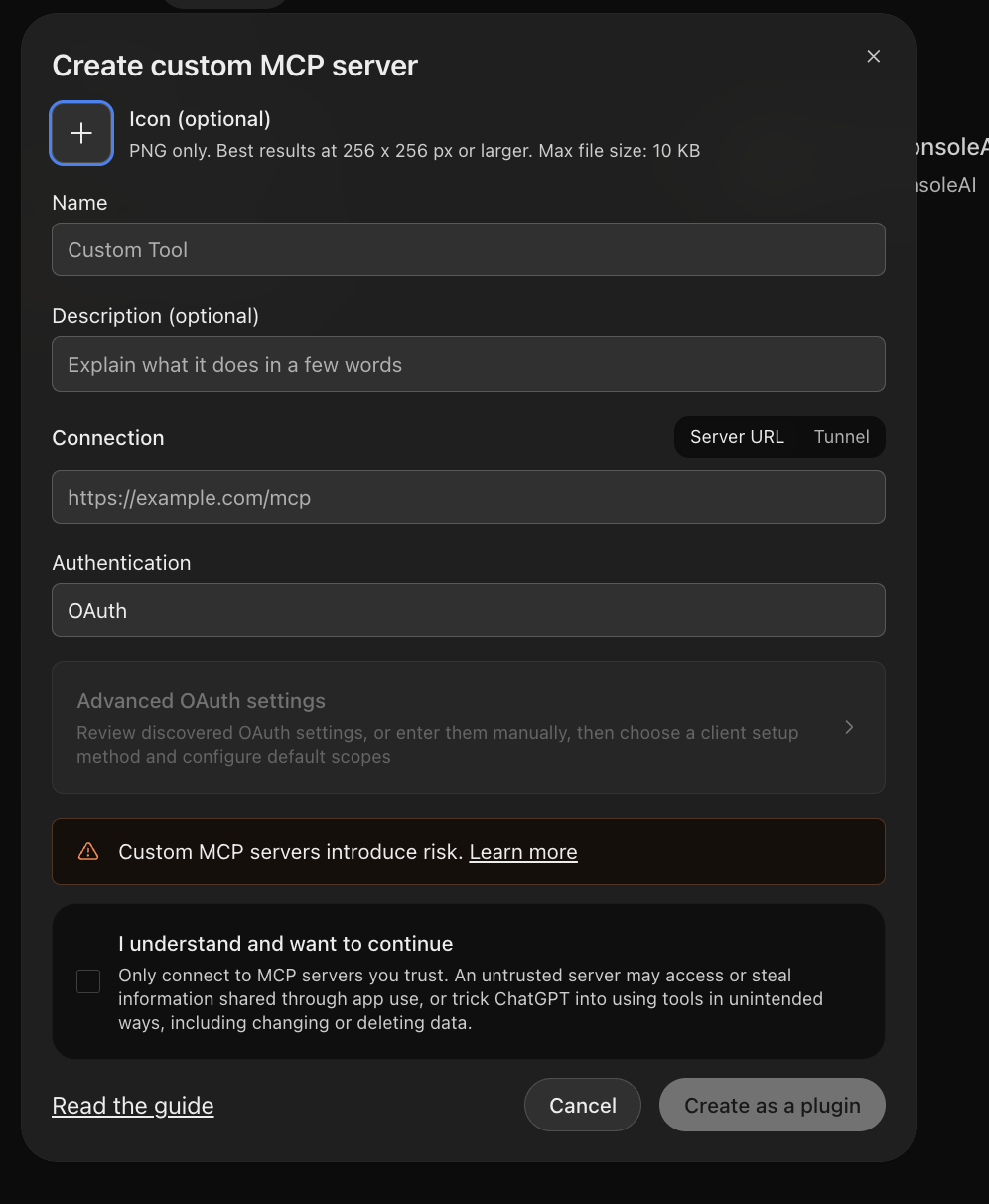
- Name:
SearchConsole.ai -
Under Connection, select Server URL.
Server URL:
https://searchconsole.ai/mcp - Authentication: OAuth
- Check: I understand and want to continue
-
Click Create as a plugin and approve access to SearchConsole.ai.
Run a complete SEO audit
Start a new chat with the project for a property (website) available in your connected Google Search Console account, then paste this recipe:
Use SearchConsole.ai to audit my SEO and identify my highest-impact opportunities. Read and follow the SearchConsole.ai SEO analysis playbook before analyzing the data. Audit first. Do not change website code or content until I approve the fixes. Save the completed audit as a Markdown report using the repository's documentation convention or docs/seo/search-console-audit-YYYY-MM-DD.md. If you cannot save files, show the report in the chat. After the audit, give me a TL;DR in 3 short bullets using simple English. Then suggest up to 5 fixes in priority order. For each fix, show the affected page or file, the evidence, the change you recommend, the expected benefit, and the effort. Mark any uncertainty. Do not produce a day-by-day or 30-day implementation plan. End by asking: "Would you like me to implement these fixes?" Wait for my reply. If I approve, apply only the approved fixes to the open website project. If you cannot edit the project, give me clear instructions to apply them. After the approved fixes are complete, suggest a follow-up re-audit cron job or client automation and offer to create docs/seo/search-console-re-audit.md as its instructions. This file must reference the exact previous audit report and require the next run to compare against it. Also suggest a weekly Search Console history cron job or client automation, with instructions in docs/seo/search-console-weekly-history.md and dated snapshots in docs/seo/search-console-history/. Ask before deployment, publishing, destructive changes, or external-system mutations. Ask separately before creating a schedule or scheduled-task files.
Claude Web Chat
- Open Add custom connector in Claude.
- Name:
SearchConsole.ai - MCP server URL:
https://searchconsole.ai/mcp - Click Add.
- Click Connect and approve access to SearchConsole.ai.
- In your Claude chat, open + > Connectors and enable SearchConsole.ai.
Run a complete SEO audit
Start a new chat with the project for a property (website) available in your connected Google Search Console account, then paste this recipe:
Use SearchConsole.ai to audit my SEO and identify my highest-impact opportunities. Read and follow the SearchConsole.ai SEO analysis playbook before analyzing the data. Audit first. Do not change website code or content until I approve the fixes. Save the completed audit as a Markdown report using the repository's documentation convention or docs/seo/search-console-audit-YYYY-MM-DD.md. If you cannot save files, show the report in the chat. After the audit, give me a TL;DR in 3 short bullets using simple English. Then suggest up to 5 fixes in priority order. For each fix, show the affected page or file, the evidence, the change you recommend, the expected benefit, and the effort. Mark any uncertainty. Do not produce a day-by-day or 30-day implementation plan. End by asking: "Would you like me to implement these fixes?" Wait for my reply. If I approve, apply only the approved fixes to the open website project. If you cannot edit the project, give me clear instructions to apply them. After the approved fixes are complete, suggest a follow-up re-audit cron job or client automation and offer to create docs/seo/search-console-re-audit.md as its instructions. This file must reference the exact previous audit report and require the next run to compare against it. Also suggest a weekly Search Console history cron job or client automation, with instructions in docs/seo/search-console-weekly-history.md and dated snapshots in docs/seo/search-console-history/. Ask before deployment, publishing, destructive changes, or external-system mutations. Ask separately before creating a schedule or scheduled-task files.
Claude Code
Paste this into Claude Code:
Add a user-level remote Streamable HTTP MCP server named searchconsole-ai with URL https://searchconsole.ai/mcp. Authenticate it with OAuth in my browser, then use SearchConsole.ai to list all Google Search Console properties I can access.Approve the connection in your browser. If the tools are not available yet, restart Claude Code and ask it to list your websites.
Run a complete SEO audit
Start a new chat with the project for a property (website) available in your connected Google Search Console account, then paste this recipe:
Use SearchConsole.ai to audit my SEO and identify my highest-impact opportunities. Read and follow the SearchConsole.ai SEO analysis playbook before analyzing the data. Audit first. Do not change website code or content until I approve the fixes. Save the completed audit as a Markdown report using the repository's documentation convention or docs/seo/search-console-audit-YYYY-MM-DD.md. If you cannot save files, show the report in the chat. After the audit, give me a TL;DR in 3 short bullets using simple English. Then suggest up to 5 fixes in priority order. For each fix, show the affected page or file, the evidence, the change you recommend, the expected benefit, and the effort. Mark any uncertainty. Do not produce a day-by-day or 30-day implementation plan. End by asking: "Would you like me to implement these fixes?" Wait for my reply. If I approve, apply only the approved fixes to the open website project. If you cannot edit the project, give me clear instructions to apply them. After the approved fixes are complete, suggest a follow-up re-audit cron job or client automation and offer to create docs/seo/search-console-re-audit.md as its instructions. This file must reference the exact previous audit report and require the next run to compare against it. Also suggest a weekly Search Console history cron job or client automation, with instructions in docs/seo/search-console-weekly-history.md and dated snapshots in docs/seo/search-console-history/. Ask before deployment, publishing, destructive changes, or external-system mutations. Ask separately before creating a schedule or scheduled-task files.
Cursor
Add to Cursor
- Close Cursor completely.
- Select Add to Cursor below.
- When Cursor reopens, go to Settings > Tools & MCP and enable SearchConsole.ai.
- Select Authenticate, then approve the connection in your browser.
If Cursor reports that anysphere.cursor-deeplink was not found, update or reinstall Cursor and try again.
Method 2: Manual configuration
Save this configuration in ~/.cursor/mcp.json:
{
  "mcpServers": {
    "searchconsole-ai": {
      "type": "http",
      "url": "https://searchconsole.ai/mcp"
    }
  }
}
Run a complete SEO audit
Start a new chat with the project for a property (website) available in your connected Google Search Console account, then paste this recipe:
Use SearchConsole.ai to audit my SEO and identify my highest-impact opportunities. Read and follow the SearchConsole.ai SEO analysis playbook before analyzing the data. Audit first. Do not change website code or content until I approve the fixes. Save the completed audit as a Markdown report using the repository's documentation convention or docs/seo/search-console-audit-YYYY-MM-DD.md. If you cannot save files, show the report in the chat. After the audit, give me a TL;DR in 3 short bullets using simple English. Then suggest up to 5 fixes in priority order. For each fix, show the affected page or file, the evidence, the change you recommend, the expected benefit, and the effort. Mark any uncertainty. Do not produce a day-by-day or 30-day implementation plan. End by asking: "Would you like me to implement these fixes?" Wait for my reply. If I approve, apply only the approved fixes to the open website project. If you cannot edit the project, give me clear instructions to apply them. After the approved fixes are complete, suggest a follow-up re-audit cron job or client automation and offer to create docs/seo/search-console-re-audit.md as its instructions. This file must reference the exact previous audit report and require the next run to compare against it. Also suggest a weekly Search Console history cron job or client automation, with instructions in docs/seo/search-console-weekly-history.md and dated snapshots in docs/seo/search-console-history/. Ask before deployment, publishing, destructive changes, or external-system mutations. Ask separately before creating a schedule or scheduled-task files.
Other
Method 1: Use a setup recipe
If your client supports remote Streamable HTTP servers and OAuth, give it this recipe:
Add a user-level remote Streamable HTTP MCP server named searchconsole-ai with URL https://searchconsole.ai/mcp. Authenticate it with OAuth in my browser, then use SearchConsole.ai to list all Google Search Console properties I can access.Method 2: Manual configuration
If the recipe does not work, add https://searchconsole.ai/mcp in your client's MCP settings as a remote Streamable HTTP server named searchconsole-ai.
If your client uses a JSON configuration file, use this configuration. If a mcpServers block already exists, add only the searchconsole-ai entry to that block and keep your other servers.
{
  "mcpServers": {
    "searchconsole-ai": {
      "type": "http",
      "url": "https://searchconsole.ai/mcp"
    }
  }
}
Save the configuration, then reload your client's MCP servers or restart the client. Select Authenticate or Connect and approve access to SearchConsole.ai in your browser.
Run a complete SEO audit
Start a new chat with the project for a property (website) available in your connected Google Search Console account, then paste this recipe:
Use SearchConsole.ai to audit my SEO and identify my highest-impact opportunities. Read and follow the SearchConsole.ai SEO analysis playbook before analyzing the data. Audit first. Do not change website code or content until I approve the fixes. Save the completed audit as a Markdown report using the repository's documentation convention or docs/seo/search-console-audit-YYYY-MM-DD.md. If you cannot save files, show the report in the chat. After the audit, give me a TL;DR in 3 short bullets using simple English. Then suggest up to 5 fixes in priority order. For each fix, show the affected page or file, the evidence, the change you recommend, the expected benefit, and the effort. Mark any uncertainty. Do not produce a day-by-day or 30-day implementation plan. End by asking: "Would you like me to implement these fixes?" Wait for my reply. If I approve, apply only the approved fixes to the open website project. If you cannot edit the project, give me clear instructions to apply them. After the approved fixes are complete, suggest a follow-up re-audit cron job or client automation and offer to create docs/seo/search-console-re-audit.md as its instructions. This file must reference the exact previous audit report and require the next run to compare against it. Also suggest a weekly Search Console history cron job or client automation, with instructions in docs/seo/search-console-weekly-history.md and dated snapshots in docs/seo/search-console-history/. Ask before deployment, publishing, destructive changes, or external-system mutations. Ask separately before creating a schedule or scheduled-task files.